The Best Monitor For Color Grading Of 2026
 By, Michael Brown
Updated
Summary
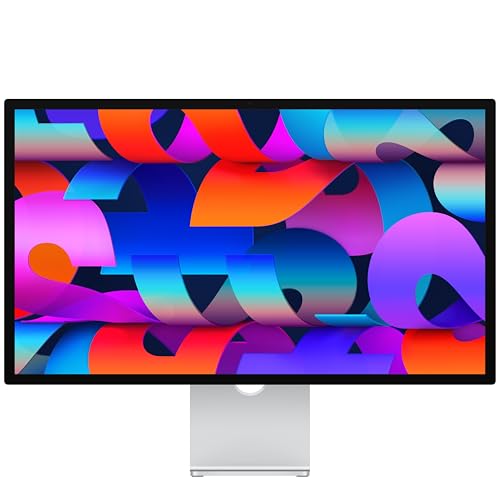
Apple Studio Display

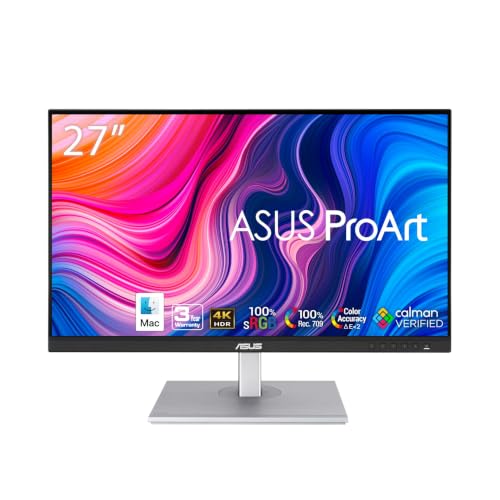
ASUS ProArt PA278QV 27 Inch 1440p QHD Professional Monitor

BenQ MA270U 27” 4K Monitor
Color grading is one of those tasks where a monitor can directly influence the final result. If colors are inaccurate, shadows are difficult to distinguish, or brightness varies across the screen, footage that looks perfect during editing may appear completely different on another display. For editors, filmmakers, and content creators, choosing the right monitor is therefore less about having the biggest screen and more about seeing an image they can trust.
Color accuracy is the obvious priority, but it is only part of the equation. A good grading monitor should also offer strong color-space coverage, consistent brightness, sufficient resolution for detailed footage, and uniform performance across the panel. The type of work matters too. Professional cinema grading can demand specialized reference displays, while YouTube, commercial, and photography workflows may benefit more from a high-quality creative monitor that also works well for everyday editing.
Apple Studio Display takes a distinctly creator-focused approach to those requirements. The 5K screen provides plenty of detail for inspecting footage while leaving room for editing tools and timelines, and its emphasis on consistent, high-quality visuals suits work where subtle differences in color matter.
There is no universal grading monitor for every workflow. A professional colorist, freelance video editor, and occasional content creator can have very different requirements and budgets. Our selections reflect those differences, with color performance remaining the common thread throughout.
Our Top Picks


Exceptionally sharp 5K detail Wide P3 color Strong anti-glare coating Excellent integrated audio Flexible Thunderbolt connectivity
Tilt- and height-adjustable stand and VESA mount adapter sold separately
Fine detail has nowhere to hide on this 27-inch screen. With 14.7 million pixels, 600 nits of brightness, support for one billion colors, and a P3 wide color gamut, the Studio Display gives editors a crisp, vivid view of fine textures and subtle tonal changes. The standard anti-reflective coating also helps the picture remain comfortable to examine when room lighting is less than ideal.
That polished visual experience extends beyond the panel. The 12MP Center Stage camera keeps video calls framed naturally, while Desk View can show the workspace during a creative discussion. Meanwhile, a studio-quality three-microphone array and six-speaker system with Spatial Audio make client conversations, reference playback, and everyday media feel unusually complete without filling the desk with extra equipment.
Connectivity fits neatly into a Mac-centered studio as well. Two Thunderbolt 5 ports support high-speed accessories, multi-display setups, and fast charging for compatible Mac laptops, while two additional USB-C ports provide convenient places for peripherals or an iPhone.
The included stand offers tilt adjustment, which may be perfectly adequate on a well-positioned desk. Creators who also want height adjustment or VESA mounting will simply need to choose one of those separately sold configurations.

Factory-calibrated color accuracy Complete sRGB coverage Flexible ergonomic stand Extensive legacy connectivity Five-year warranty coverage
No USB-C connectivity
Opening a photograph or video project feels reassuring when the display already has a trustworthy starting point. This 27-inch ProArt monitor is Calman Verified and factory tuned to Delta E below 2, helping skin tones, brand colors, and delicate gradients appear closer to their intended values from the outset. Its 100% sRGB and 100% Rec. 709 coverage also aligns neatly with common web and video workflows.
The 2560 x 1440 IPS panel balances detail with usable interface space, so toolbars and timelines do not crowd the image. When a project calls for a different treatment, ProArt Preset and ProArt Palette make it easier to adjust color, brightness, and black levels without turning the process into guesswork.
Long editing sessions receive just as much attention. The stand supports height, tilt, swivel, and pivot adjustments, while flicker-free backlighting, a blue light filter, and an anti-glare surface help reduce visual fatigue. A broad selection of DisplayPort, HDMI, DVI-D, Mini DisplayPort, and USB connections also suits studios that mix newer and older equipment.
USB-C is the one convenience missing here, so a laptop workflow may require a separate display cable and charger. In a desktop editing setup, however, the generous port selection makes that easier to accommodate.

Mac-calibrated P3 color Sharp 4K workspace Single-cable MacBook setup Useful keyboard controls
60Hz refresh rate
Moving a visual project from a MacBook screen to an external monitor can expose an awkward shift in color. BenQ tackles that concern with Mac-specific calibration and a vibrant P3 wide color gamut, giving photographers and video editors a more consistent-looking canvas when they expand onto the 27-inch 4K panel.
The connection itself stays wonderfully simple. One USB-C cable can carry the MacBook display while delivering up to 90W of power, keeping the laptop charged without another adapter across the desk. A second USB-C port supplies up to 15W for an iPad or iPhone, and two HDMI inputs leave room for additional sources. Better still, brightness and volume can be controlled directly from the MacBook keyboard, so the monitor does not feel like a separate system that constantly needs manual adjustment.
Its stand supports height, tilt, swivel, and pivot changes, making it easier to settle into a comfortable editing position or rotate the screen for portrait work. That flexibility pairs nicely with the sharp 3840 x 2160 resolution when inspecting detailed photographs or arranging a layered creative workspace.
A 60Hz refresh rate keeps regular editing and playback smooth, though creators who also prioritize high-frame-rate competitive gaming may prefer a faster specialist display.
Calman-verified color accuracy Detailed 4K canvas Full sRGB coverage Convenient USB-C power
Not ideal for gaming
Some displays impress at first glance, but this ProArt model focuses on something more useful: making the image believable. Calman verification and factory calibration to Delta E below 2 provide a dependable base for color decisions, while 100% sRGB and 100% Rec. 709 coverage suit photography, digital design, and standard video production.
Its 27-inch 4K UHD workspace gives fine edges, text, and high-resolution footage plenty of room to breathe. ProArt-oriented color controls make it easier to shape the image for a particular project, and the IPS viewing characteristics help maintain a consistent picture when the editor shifts position or a colleague looks over from the side.
USB-C adds welcome simplicity to the desk by carrying DisplayPort video and delivering up to 65W of power through one connection. HDMI, DisplayPort, and the USB hub then accommodate other sources and accessories, which is useful when one workstation handles cameras, storage, and multiple computers. The included extended warranty and Adobe Creative Cloud offer add a little extra reassurance around the purchase.
Its professional feature set is centered on accurate creative work, not fast-paced gaming. Anyone splitting time between editing and competitive play may want a gaming-focused screen, while color-led workflows are much closer to this monitor's strengths.

Expansive ultrawide workspace Convenient Thunderbolt 4 hub Built-in KVM switching Smooth 100Hz motion
Curved screen may affect geometry
Instead of constantly reopening panels, editors can spread their tools across the 21:9 Ultra-WQHD display and keep more of a project visible at once. The 1000R curve brings the edges closer to the viewer, creating an enveloping workspace that feels especially natural for long timelines and side-by-side windows.
Color-rich material benefits from HDR10, which expands the visible range between darker and brighter areas while presenting a broad variety of hues. Motion also looks pleasantly fluid thanks to the 100Hz refresh rate, and AMD FreeSync helps reduce tearing when the monitor switches from creative applications to games or fast-moving content.
The connectivity hub is where this display becomes particularly useful. Thunderbolt 4 transfers data and supplies up to 90W of charging, while HDMI, DisplayPort, USB, and Ethernet support a fuller desk setup. A built-in KVM switch can control two sources with one keyboard and mouse, and Picture-in-Picture or Picture-by-Picture makes those machines easier to view together. Integrated speakers save further desk space.
One minor downside is that a curved screen can make perfectly straight geometry appear slightly different near the edges. For highly exact architectural lines or distortion-sensitive layouts, keeping critical shapes nearer the center provides a more comfortable way to work.

Adaptive ambient-light sensor Smooth 120Hz movement Dynamic ICC profile management Highly adjustable positioning
No built-in speakers
Light around a workstation rarely stays consistent from morning to evening. The built-in ambient light sensor responds by optimizing brightness and color temperature for the surroundings, helping the screen remain comfortable as the room changes. For color-conscious work, the ability to create, store, and manage ICC profiles through Dell's software dashboard also gives users a more organized way to handle different projects and viewing needs.
A 120Hz refresh rate makes scrolling through long timelines and moving around detailed layouts feel noticeably more immediate than on a conventional 60Hz monitor. That extra fluidity is useful beyond gaming; it simply makes everyday interaction with a creative application feel calmer and more responsive.
The nearly borderless InfinityEdge design keeps attention on the image and works well when displays sit side by side. At the same time, the stand can tilt, swivel, pivot, and adjust in height, so the panel adapts to portrait edits, collaborative viewing, or a preferred seated position without an extra arm.
There are no built-in speakers, so audio monitoring requires headphones or an external speaker setup. Most editing desks already use dedicated audio equipment, making this a manageable consideration rather than a major disruption.

Crisp 4K resolution Wide IPS viewing angles Vibrant HDR10 presentation Simple onscreen controls
Tilt-only stand
High-resolution photographs immediately gain breathing room on the 27-inch 3840 x 2160 display. Fine textures and small interface elements appear crisp, while the IPS panel's wide viewing angles help the image stay consistent when the viewing position shifts. A 1000:1 contrast ratio adds definition between lighter and darker areas without distracting from the underlying detail.
HDR10 support and up to 90% DCI-P3 color gamut expression give vivid footage and graphics a broader, livelier palette. That coverage may not target the very highest-end mastering environment, but it offers a useful foundation for creators working on online video, photography, and general design. The borderless appearance also keeps the screen feeling clean within a compact editing setup.
LG's OnScreen Control software brings frequently used options onto the desktop, allowing users to divide the workspace or change basic monitor settings with a few clicks. HDMI and DisplayPort connections handle common computers and media sources, and the supplied HDMI cable makes initial setup easier.
However, the stand adjusts for tilt only, so finding the right screen height may call for a riser or a separate mounting solution. Once positioned well, the simple stand keeps the desk uncluttered.
Buying Guides For Efficiently Picking The best monitor for color grading
Experts advise that it is necessary to take a close look at the style, functionality, and value of the items you love. The most highly recommended way to know if a product is the best is by its quality checking.
The quality of the best monitor for color grading will be a vital factor, which plays a decisive role in your experience of this product. Moreover, you guys always wanna products with high-quality standards and valuable characteristics, which best suits your desired needs.
So, how can you know if your selected best monitor for color grading is of the best quality? The buying guide section below will present to you some tips for the most efficient purchase. Take a close look at the following guides!
Connections
Aspect Ratio
Response Time
Brightness
Resolution
Refresh Rate
Screen Size
Panel Type
FAQs
What makes a monitor good for color grading?
Look for excellent color accuracy, a wide color gamut, consistent brightness, high resolution, and support for professional calibration.
Is 4K important for color grading?
4K is highly useful because it provides more detail and workspace when working with high-resolution footage.
Which panel type is best for color grading?
IPS panels are a popular choice because they typically provide accurate colors and consistent viewing angles.
Conclusion
In short, we’ve included all the most outstanding best monitor for color grading found on the market during this time. Simultaneously, the detailed description and useful tips for best monitor for color grading selection are shown with clarity. In case you cannot afford these options, then the LG 27US500-W Monitor 27-Inch 4K will be your new buddy. If you want more information about the best monitor for color grading, don’t hesitate to contact us. Our team is always here to support you guys!
About Michael Brown